Advanced Allocations Setup
From the Advanced Allocation page, the user may setup the allocation parameters on the header, process the related lines in the lines section below, and post the lines to the General Ledger. Allocations may be processed using G/L Accounts, Statistical Entries and Quick Key Allocations. The first example below uses G/L Accounts.
Using Actual Entries
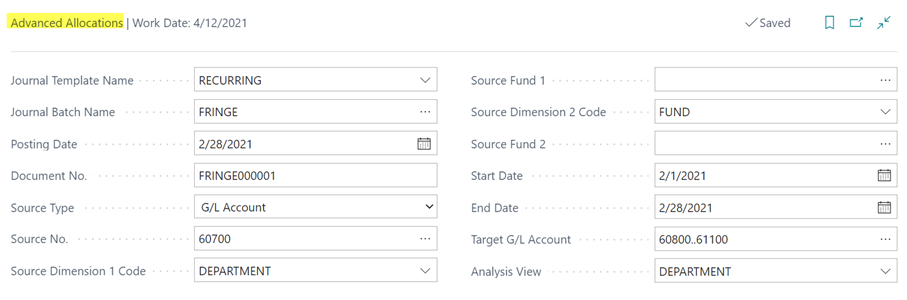
To setup an allocation using actual G/L entries the user will populate the fields in the header as follows:
Search for Advanced Allocations and select the related link.
In the header select the Journal Template Name Recurring
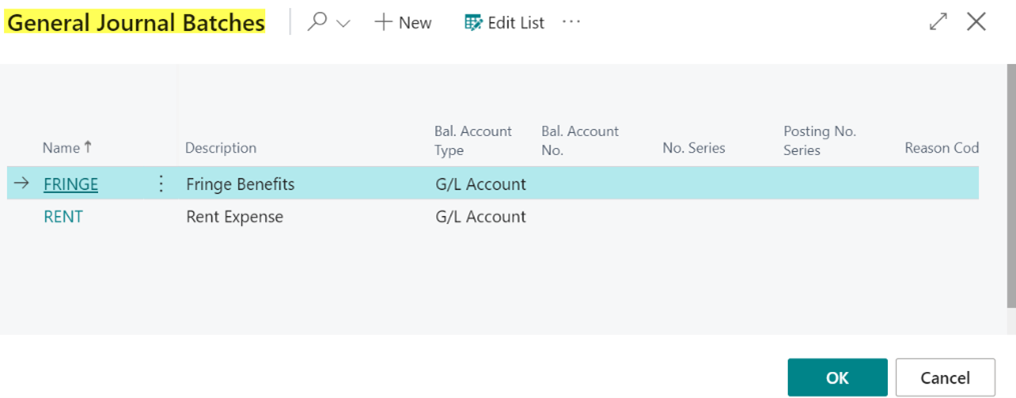
Create a journal batch by clicking the Edit Assist on the Journal Batch Name field.
Create a name and description.
Leave the Bal Account Type set to G/L Account on the batch.
Click OK to close and select the batch in the Journal Batch Namefield.
In the Advanced Allocationspage, enter the Posting Date for the resulting journal entries.
Enter a descriptive Document No. to be used on the posted journal entries.
The Source Type represents the type of entry used for the base entry. G/L Account is used in this example. See Create Statistical Accounts/Entries below below for examples of using Statistical Entries.
The Source No. represents the G/L Account No. used as the base.
The Source Dimension Code represents the Dimension used for allocation in the base entries.
Enter the Start Date and End Date for the date range the entries should be considered.
The Target G/L Accounts are the accounts that will be allocated based on the allocation in the Source Account. This can be more than one account. To designate the accounts select the Edit Assist button on the field and mark the accounts in the G/L Account List and click OK.
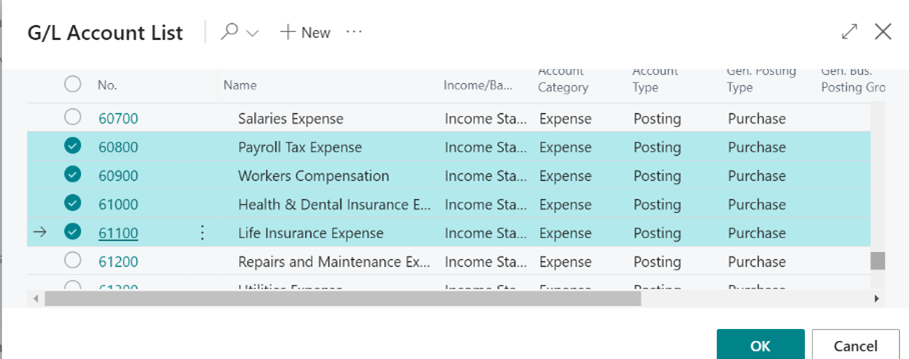
Select an Analysis View setup using the Source Dimensions used in the Allocation.
Analysis View Setup
Search forAnalysis View and select the related link.
Select New in the ribbon.
On the line, enter a descriptive code and description for the view.
Highlight the line for the new Analysis View created and, in the ribbon, select Manage > Edit to open the Analysis View Card.
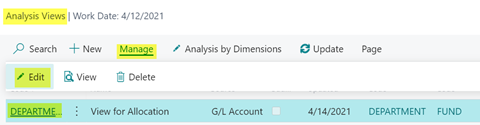
On the Analysis View Card populate the related fields to match the Source Dimensions and Fund to be used on the allocation.
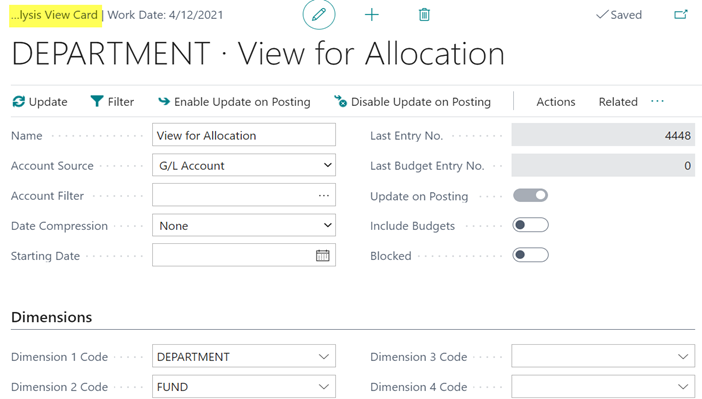
Enter Account Source as G/L Account.
Leave the Account Filter blank.
Enter Date Compression None.
Leave the Start Date blank.
On the Dimension fast tab, enter the Dimension Codes used in the allocation.
In the ribbon select Enable Update on Posting. This generates the update. The update processes entries in the General Ledger filtered by the Dimension Codes entered in the Dimension fast tab.
Once the Allocation Card header has been setup, the user may then process the allocation entries.
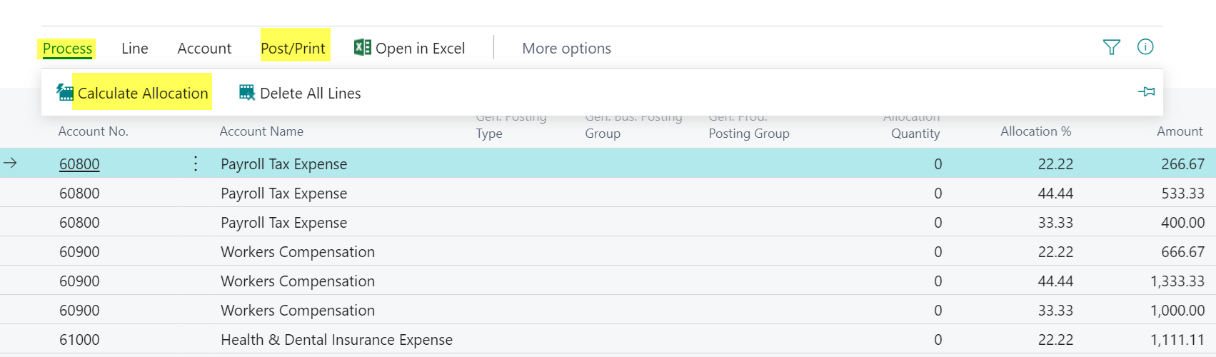
In the lines select Process > Calculate Allocations. This will generate the entries for the target accounts using the allocation percentage in the Source Account for the Dimensions selected in the General tab.
Select Post / Print>Post to post the entries.
Create Statistical Accounts/Entries
In this example Statistical Entries are used as the base in the allocations. First the user must setup the Statistical Accounts. Once the Statistical Accounts have been created the user may use the accounts in a Statistical Journal to post the entries used as the base entries in the allocation.
1.Search for Statistical Accounts and select the related link.
Select New in the ribbon.
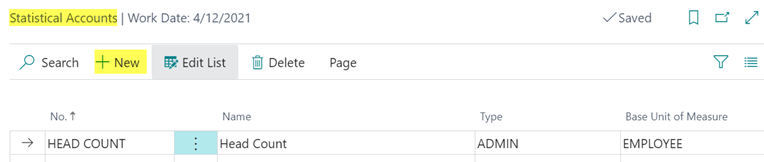
In the line enter a descriptive No. and Name to represent the type of unit of measure to be used.
In the Type field select the dropdown and create a type.
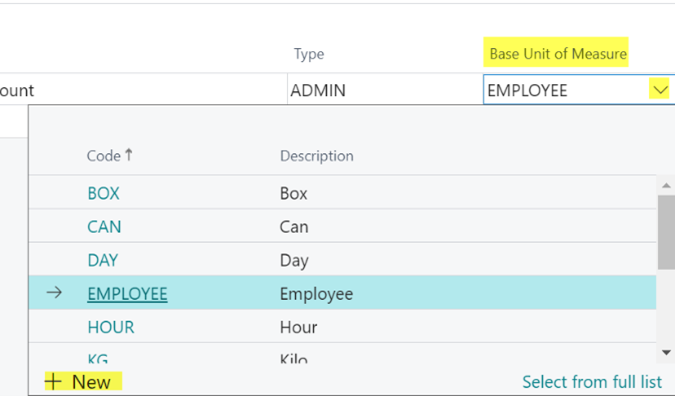
Select a Base Unit of Measure from the dropdown. If the Unit of Measure is not in the list, select New and create the measure required.
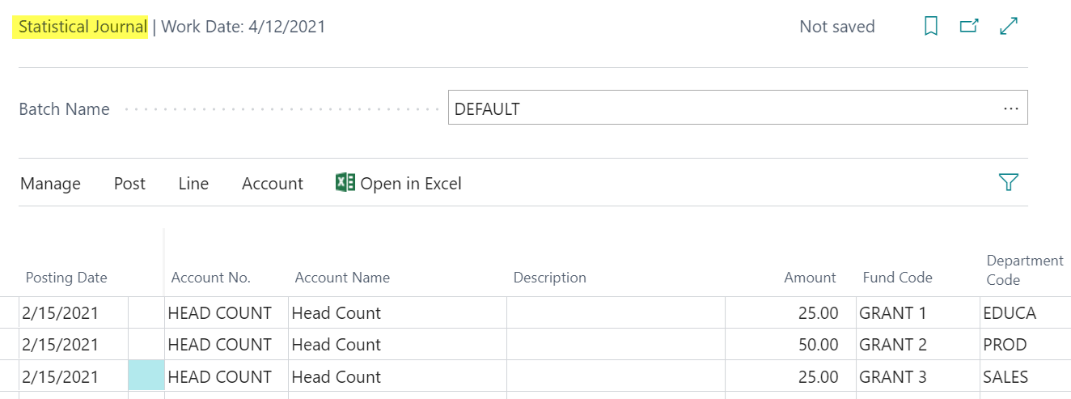
Search for Statistical Journal and select the related link.
Enter the Posting Date, Account No., Amount and Dimensions.
From the ribbon select Post to post the entries.
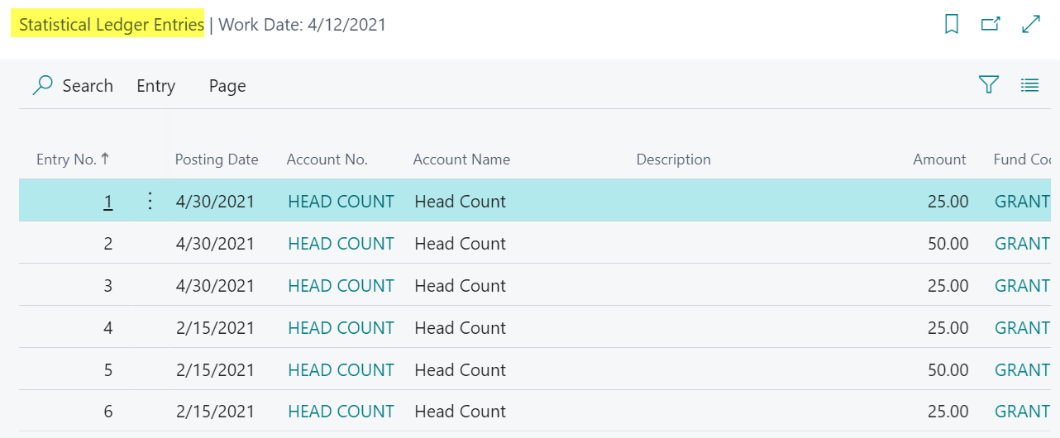
The entries will be posted in theStatistical Ledger Entries table.
When using Statistical Entries as the base in Advance Allocations the Account Type entered is Statistical and the Account No. is selected from the list of Statistical Accounts.
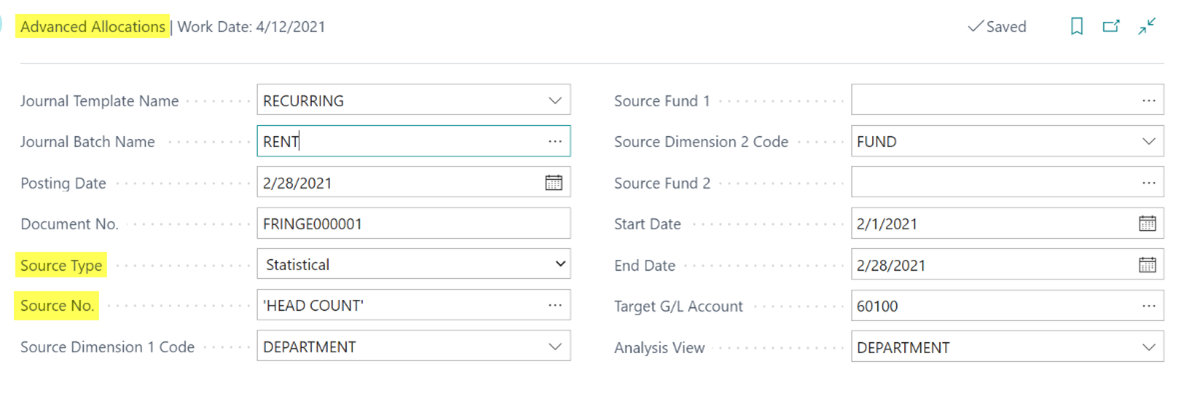
The Allocation will use the allocation percentage represented by the statistical entries to calculate the G/L Account entries for the target account.

Quick Key Allocations
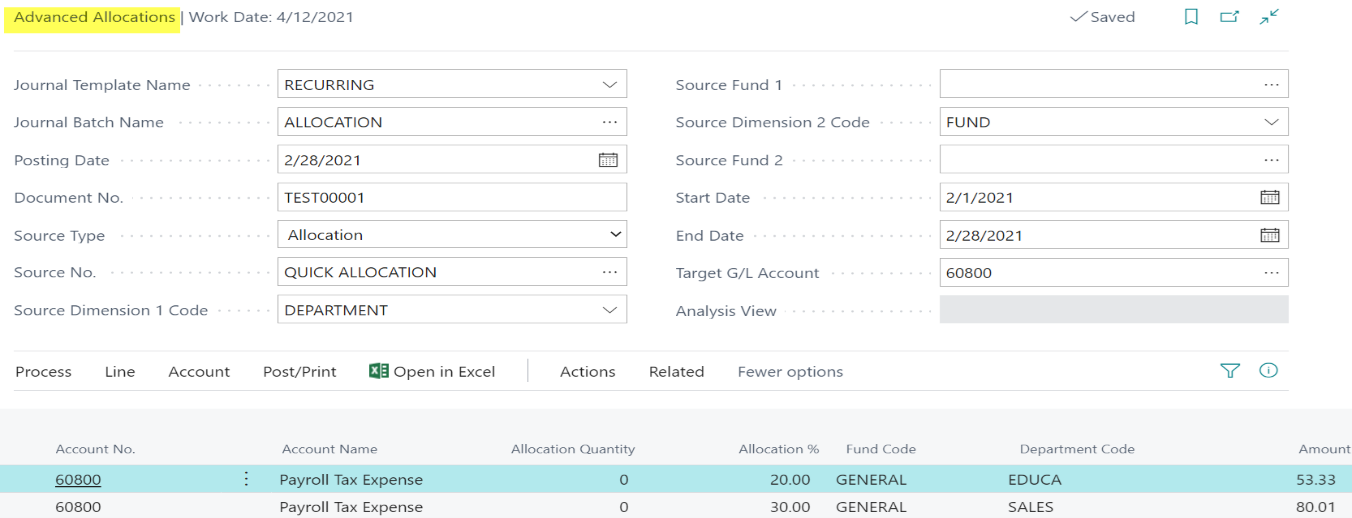
Advanced Allocations may also use the Quick Key Allocations as the Source Type.
In the Source Type field select Allocations.
Select the desired allocation from the list of Quick Key Allocations to populate the Source No.
Since the Quick Key Allocation designates the allocation percentages to be used, the Analysis View is not required to calculate the entries.
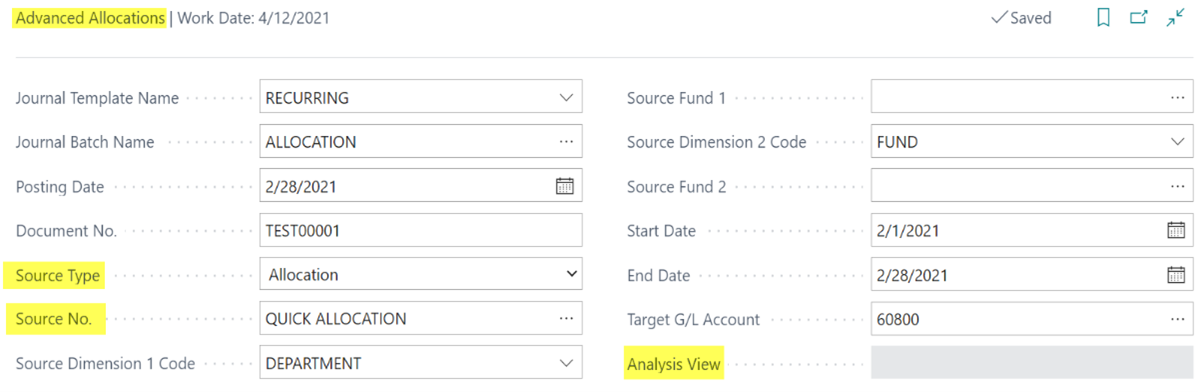
The entries posted to the Target Account will be allocated by the percentage for each Dimension selected in the Quick Key Allocation.
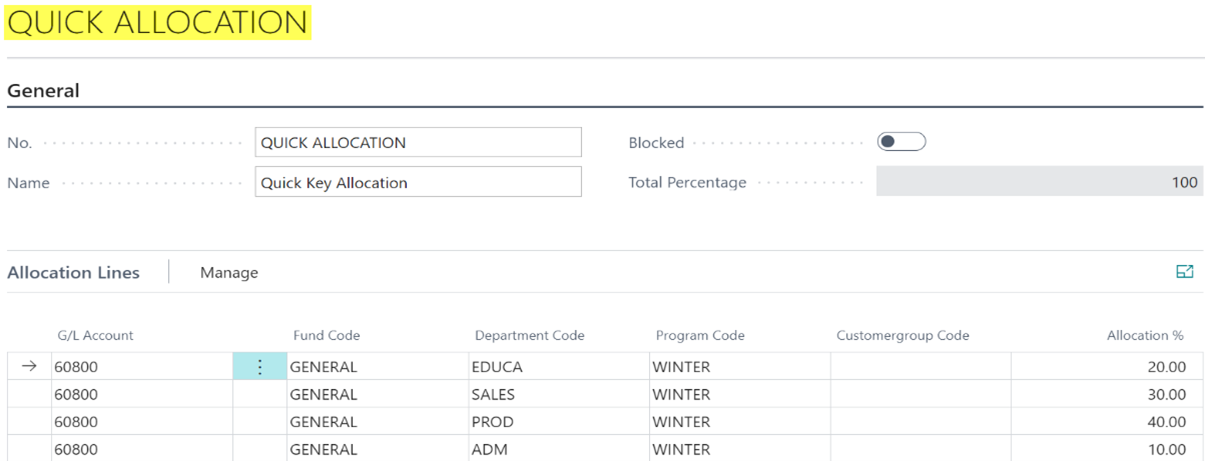
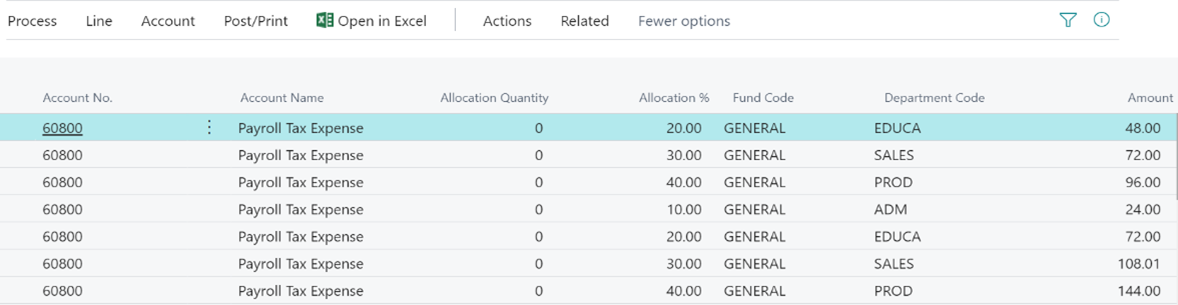
Entry results based on Quick Key Allocation: